Trust badge for Shopify
Reassure them at the buy button
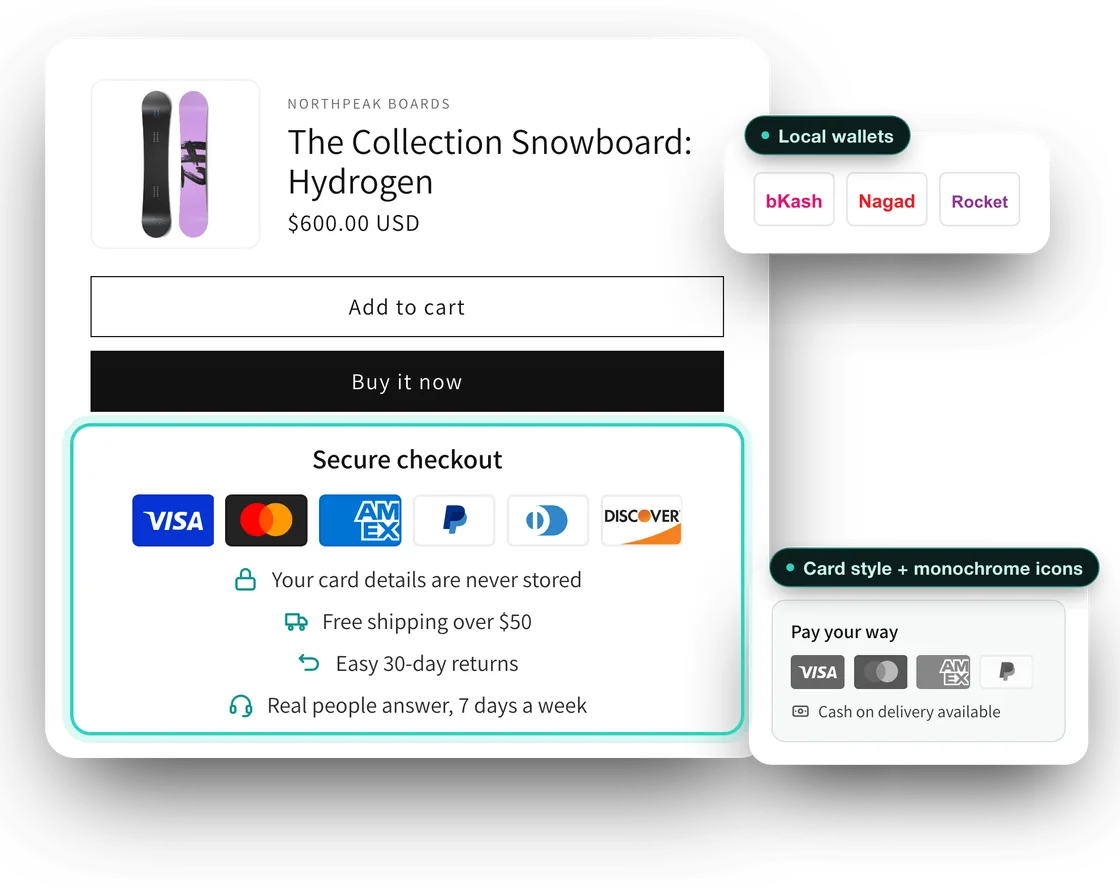
Payment icons and your key promises, right under Add to cart.
A first-time visitor wants to know two things before paying: can I pay my way, and can I trust this shop? Trust Badge answers both where they decide — with the payment methods your store actually accepts.
- Free, no paid plans
- No code
- Shows the methods you really accept
Part of Store Essentials, our free app for storefront basics. Installing it also gives you Announcement Bar and FAQ Accordion — none of them shows on your store until you add it.
Shopify App Store
Free— no paid plans
Theme app extension— no code, no theme edits
No store data— the app requests no access
Before they pay
Four doubts at the buy button.
Nobody opens your policies page before adding to cart. If the answer is not next to the button, the doubt wins.
Pay how?
The payment methods your checkout accepts, read from your store.
Safe?
Your own line on secure checkout, with a lock beside it.
Shipping?
Your shipping promise, such as free over a set amount.
Returns?
Your returns window, in one short line.
Features
What you can set
Everything below ships in the app today. Nothing here is a roadmap item.
Icons that match your checkout
In Auto mode the badge shows the payment methods your store has turned on, so it never shows a card you do not take. Prefer to choose? Pick the icons by hand.
Mobile wallets too
Show bKash, Nagad, Rocket and SSLCommerz next to the card brands, for stores that sell where those are how people pay.
Up to four promises
Under the icons, up to four short lines with an icon each: secure checkout, shipping, returns, support. A line you leave empty does not show.
Fits your theme
Set the alignment, icon size and spacing, switch to monochrome icons, and choose no container, a border or a card.
No code, nothing left behind
Add it from the theme editor as an app block. Remove the block, or the app, and it is gone — nothing was written into your theme files.
FAQ
Your questions, answered
Trust Badge
Which payment icons does the trust badge show?
In Auto mode, the payment methods enabled on your store — so the badge changes when your checkout does. In Manual mode you choose from Visa, Mastercard, American Express, PayPal, Apple Pay, Google Pay and Discover, plus the mobile wallets bKash, Nagad, Rocket and SSLCommerz.
Where on the page does the badge go?
Wherever the theme editor lets you add an app block — usually the product information section, right under the buy buttons. It needs an Online Store 2.0 theme, such as Dawn or Horizon.
Why does the App Store listing say Store Essentials?
Trust Badge is one of three blocks in Store Essentials, our free app. You install the app once; the announcement bar and the FAQ accordion come with it, and none of them appears on your store until you add it.
Does the trust badge collect any data?
No. The app requests no access to your store's data, and the badge is plain HTML and CSS in your theme — no tracking and no scripts.
Add the trust badge free
Install Store Essentials, open a product page in the theme editor and add the Trust badge block. Free, with no paid plans.